
A 200-page PDF lands in your inbox. You need five pages from the middle for a meeting tomorrow. Do you email the whole file, screenshot pages one by one, or fight with expensive desktop software? There’s a simpler option: split the PDF. Cutting one large file into smaller, focused pieces is one of the most practical document skills you can learn — and it’s free with a Split PDF tool that runs entirely in your browser.
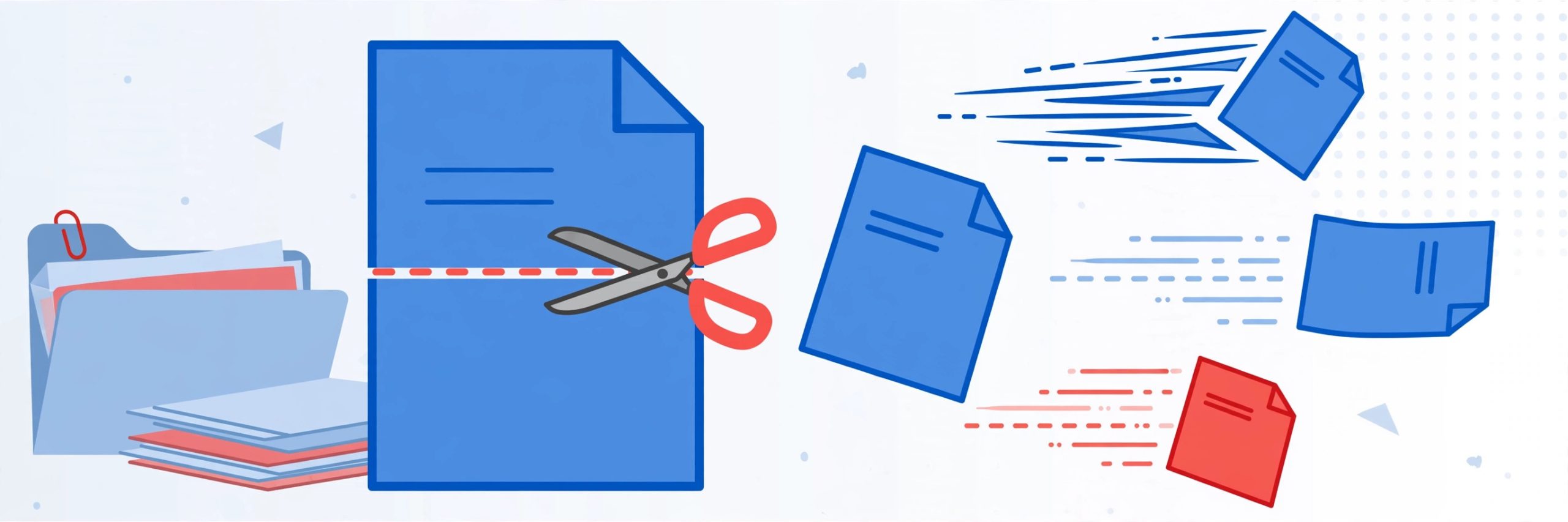
Splitting a PDF means dividing it into separate files — extracting a chapter, separating every page, or carving out a page range. Unlike editing the content itself, splitting only rearranges how the pages are packaged. The original text, images, and formatting stay exactly as they were.
This guide covers when splitting makes sense, how to do it in a few steps, the two main split modes, and the mistakes that cost people time. Everything here works without installing anything.
Why You’d Split a PDF in the First Place
PDFs tend to accumulate pages the way closets accumulate junk. Splitting helps in surprisingly common situations:
- Sharing only what’s relevant. A client needs pages 12–18 of a 90-page report, not the entire file. A split version is smaller, clearer, and more professional.
- Upload size limits. Job portals, university systems, and government forms often cap file sizes. Splitting a document into parts gets you under the limit without losing anything.
- Organizing long documents. A scanned binder of receipts, a semester’s worth of lecture slides, or a multi-chapter manual becomes far more useful as individual files.
- Protecting sensitive pages. Split off the pages someone needs to see, and keep the rest private — no awkward redactions required.
- Printing smart. Need three copies of one section? Print the split file instead of the whole document and save paper.
The Two Main Ways to Split
Most split tools offer two modes, and picking the right one saves you from doing the job twice:
1. Extract a page range
You pick specific pages — say, pages 5 through 12 — and get one new PDF containing just those. This is the mode for “I need this chapter” or “send the appendix.” It’s the most common use by far.
2. Split every page into its own file
Every page becomes a standalone PDF. A 30-page document becomes 30 files. This is useful when pages need to be distributed individually — for example, handing each team member their section, or uploading pages one at a time to a system.
Some tools also let you define custom ranges (pages 1–3, 8, 15–20) in a single run. If your tool supports it, it’s the fastest way to carve a long document into several meaningful pieces at once.
Splitting a PDF in Five Steps
- Upload your PDF. Drag the file into the tool or browse your device to select it. Most web-based tools accept files from phones, tablets, and desktops equally well.
- Preview the pages. Take a moment to confirm the page order and find the exact pages you need. Splitting the wrong range is the most common error, and a quick scan prevents it.
- Choose your split mode. Decide between extracting a page range or splitting every page into its own file, based on what you need the result for.
- Enter the pages or ranges. Type the page numbers you want — “5-12” for a range, or select the every-page option. Double-check the numbers before proceeding.
- Process and download. Run the split and download your new file(s). Give the downloads clear names right away (e.g., “Report_Chapter3.pdf”) so they don’t become mystery files later.
Real Situations Where Splitting Saves the Day
- Students: a 400-page course pack becomes one PDF per week’s reading. Share only what’s assigned, and keep your study folder tidy.
- Job seekers: your portfolio is one big PDF, but a portal asks for the CV section only. Split it out in seconds.
- Admins and accountants: a month’s scanned receipts in one file gets split into per-vendor or per-week batches for filing.
- Lawyers and compliance: submit exactly the pages a filing requires — nothing extra, nothing missing.
- Presenters: pull the three slides’ worth of pages you actually need from a dense handout and build a clean appendix.
What About the Original File?
A common worry: does splitting change or damage the original PDF? No. Splitting tools read your file and generate new files from the selected pages. Your original stays untouched on your device — the upload is just a working copy. That said, it’s always wise to keep a backup of important originals before any document operation, simply as good practice.
Another question people ask is whether split files keep their quality. Since splitting rearranges pages rather than re-compressing them, text and images come through at the same quality as the source. Fonts, links, and layout are preserved.
Pro Tips for Cleaner Splits
- Name files immediately. “split-1.pdf” through “split-47.pdf” will haunt you later. Rename as you download.
- Check page numbers first. PDF readers sometimes number pages differently from the document’s printed page numbers (front matter, roman numerals). Verify with the reader’s page counter, not the printed footer.
- Batch your ranges. If you need several sections, define all ranges in one session rather than uploading the file five separate times.
- Watch out for scanned pages. Scanned PDFs are images, not text — they split fine, but you won’t be able to search inside the resulting files.
- Recombine when done. After editing a section separately, merge the pieces back together with a merge tool to restore the full document.
- Keep file sizes in mind. Splitting by every page creates many files; zip them into one archive before emailing to avoid attachment chaos.
Common Mistakes to Avoid
- Guessing page numbers. The chapter starts “on page 40” in the book but is PDF page 52 because of the cover and contents. Always verify in the preview.
- Splitting encrypted files. Password-protected PDFs may refuse to process. Unlock or request an unprotected copy first.
- Sending split files with no context. A file named “pages-5-12.pdf” means nothing to a recipient. Add a one-line note explaining what’s inside.
- Forgetting the rest of the document. After extracting what you need, decide what happens to the original — archive it clearly so you don’t later wonder where the full version went.
- Using screenshots instead. Screenshotting pages produces blurry, unsearchable images. A proper split keeps text crisp and selectable.
A Note on Privacy
PDFs often contain personal or business information, so it’s worth knowing what happens to your file. Reputable web-based tools process your upload temporarily and delete it from their servers automatically afterward — nothing is stored or shared. Still, as a rule of thumb, avoid uploading highly sensitive documents to any online tool you haven’t checked, and prefer tools that state their deletion policy clearly.
Frequently Asked Questions
Is splitting a PDF free?
Yes — many online tools split PDFs at no cost, with no sign-up required. It’s one of the simplest document operations there is.
Will splitting reduce the quality of my document?
No. Splitting repackages existing pages; it doesn’t re-compress them. Text, images, and formatting stay exactly as they were in the original.
Can I split a PDF on my phone?
Absolutely. Web-based split tools work in any mobile browser — upload, select pages, and download the result directly to your phone.
What’s the difference between splitting and extracting?
They’re closely related. Extracting usually means pulling out specific pages into one new file; splitting can also mean dividing a document into many files at once. Most tools handle both.
Can I split a scanned PDF?
Yes. Scanned PDFs split just like any other, but remember the pages are images, so the text in the split files won’t be searchable.
Do I need to install software?
No. Modern split tools run entirely in your browser on any device — no downloads, no accounts.
What if my PDF is password protected?
Encrypted PDFs typically can’t be processed until unlocked. Remove the password with the owner’s permission first, then split.
Conclusion
Big PDFs stop being a problem the moment you can slice them up. Whether you’re pulling a chapter for a meeting, trimming a file under an upload limit, or organizing a scanned archive, splitting takes less than a minute and needs no special software. Next time a monster PDF lands on your desk, open the Split PDF tool, pick your pages, and get exactly the file you need — nothing more.